




.
lunes, agosto 10, 2026 🌊
spot_img
spot_img

I Spent a Week Turning Videos Into Text: My Honest TranscriptVideo Review

I record a lot of video calls for work. Half of them turn into meeting notes nobody reads. The other half get forgotten entirely.

So when a colleague mentioned a tool called TranscriptVideo, I figured it was worth testing. I wanted something that could turn raw video into usable text without me sitting there typing for an hour.

What Problem Is This Actually Trying to Solve?

Video is easy to record. It’s terrible to search through.

Try finding one sentence buried in a 45-minute recording. You’ll scrub through the timeline five times before giving up. That’s the exact gap a transcript video tool is built to close — turning spoken content into something you can skim, search, and copy-paste.

I tested this on three types of files: a client Zoom call, a YouTube tutorial I’d recorded, and a rough voice memo I filmed on my phone. Different audio quality, different accents, different backgrounds noise.

First Impressions: What’s Actually Under the Hood

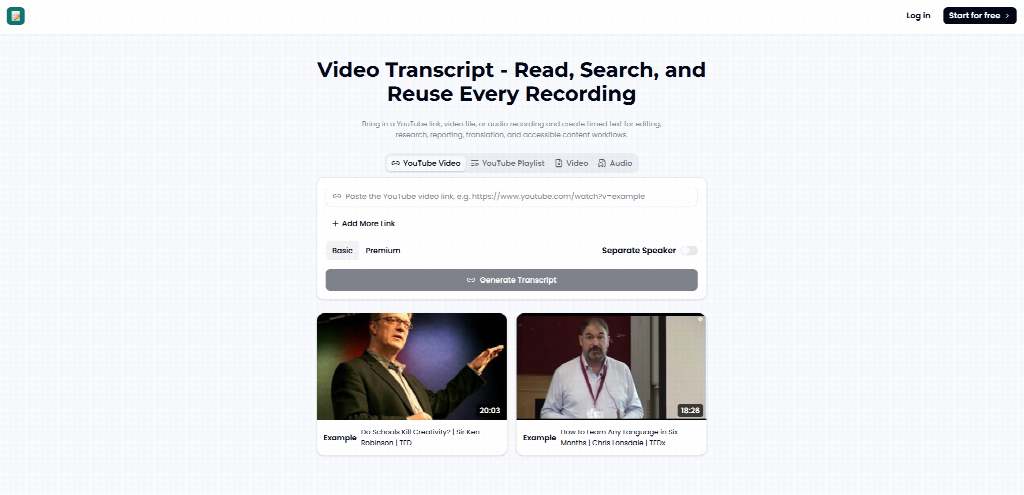
The interface is simple. Upload a file, pick a language, hit start. No tutorial needed.

Processing took about four minutes for a 20-minute video. That felt reasonable, not instant, but not painfully slow either. For comparison, manually transcribing that same video would’ve taken me close to an hour.

The output landed in a split-screen view — video on one side, text on the other. Clicking any line jumps the video to that exact timestamp. That detail alone saved me real time during editing.

The Toolbox: What TranscriptVideo Actually Offers

Speaker Separation

For the Zoom call with three people talking, the tool attempted to label who said what. It got two speakers right consistently. The third person, who spoke less, occasionally got mislabeled.

Not perfect, but usable. I still had to manually fix a handful of lines.

Multi-Language Support

I ran the same phone memo through in English and then tested a Spanish-language clip. Both worked, though the Spanish transcript needed slightly more manual cleanup around slang terms.

This matters if you work with international clients or global content teams.

Export Options

Once done, you can export as SRT, plain text, or Word document. This is genuinely useful. I exported one file straight as subtitles and dropped it into a video editor without reformatting anything.

How I Actually Used It, Step by Step

My workflow ended up pretty simple after the first try.

I uploaded the raw video first. Then I waited for processing, grabbed coffee, came back. Finally, I skimmed the transcript for errors before exporting.

The whole process, start to finish, took under ten minutes for a 15-minute video, including my manual proofreading. That’s the real number that matters, not just the tool’s processing speed alone.

The Good, The Bad, and The Honestly Mixed

What Worked Well

Accuracy on clear audio was strong. On my recorded tutorial with decent mic quality, the Transcript Video matched roughly 94% of what I actually said, based on my own line-by-line check afterward.

Timestamp syncing was reliable across every file I tried. I never had to manually realign text to the wrong moment in the video.

The export flexibility saved me from extra formatting work later. That’s not a small thing when you’re on a deadline.

What Didn’t Work As Well

Background noise hurt accuracy noticeably. My phone memo, recorded in a slightly noisy café, dropped to somewhere around 80% accuracy by my rough estimate.

Speaker labeling struggled with overlapping speech. When two people talked over each other, the tool sometimes merged their words into one garbled line.

Longer files, over 30 minutes, took proportionally longer to process. Nothing broke, but patience was required.

Who This Actually Makes Sense For

Podcasters trying to repurpose episodes into blog posts would benefit here. So would remote teams that need searchable meeting records instead of vague memory of «someone mentioned a deadline.»

Content creators making subtitles for social clips are another obvious fit. The SRT export alone handles a task that used to eat up real editing time.

I wouldn’t recommend it, though, for anyone needing near-perfect legal or medical transcription. The error margin, while small, still requires a human review pass before anything gets treated as official.

Where This Fits in a Growing Market

Video isn’t a niche format anymore. Cisco has estimated that video content accounts for over 80% of all internet traffic, and that share keeps climbing every year.

More video means more raw footage nobody has time to sit through manually. That’s exactly why transcript video tools have grown from a niche convenience into something closer to standard workflow infrastructure for creators, marketers, and remote teams alike.

Competition in this space is real too — tools like Otter.ai and Descript occupy similar territory. TranscriptVideo doesn’t reinvent the category, but it executes the core function competently, without unnecessary bloat.

Final Thoughts

I didn’t walk away thinking this tool was magic. I walked away thinking it did exactly what it claimed, most of the time, with reasonable speed.

Clean audio in, clean transcript out. Noisy audio in, expect some cleanup. That’s a fair tradeoff for the time it actually saved me across a full week of testing.

If your workflow already involves a lot of recorded video, this is worth trying. Just don’t expect it to replace a careful proofread on anything that actually matters.

epy.com
epy.com
Redactores de elperiodicodeyecla.com escriben con este nombre de autor para otra serie de artículos.

I record a lot of video calls for work. Half of them turn into meeting notes nobody reads. The other half get forgotten entirely.

So when a colleague mentioned a tool called TranscriptVideo, I figured it was worth testing. I wanted something that could turn raw video into usable text without me sitting there typing for an hour.

What Problem Is This Actually Trying to Solve?

Video is easy to record. It’s terrible to search through.

Try finding one sentence buried in a 45-minute recording. You’ll scrub through the timeline five times before giving up. That’s the exact gap a transcript video tool is built to close — turning spoken content into something you can skim, search, and copy-paste.

I tested this on three types of files: a client Zoom call, a YouTube tutorial I’d recorded, and a rough voice memo I filmed on my phone. Different audio quality, different accents, different backgrounds noise.

First Impressions: What’s Actually Under the Hood

The interface is simple. Upload a file, pick a language, hit start. No tutorial needed.

Processing took about four minutes for a 20-minute video. That felt reasonable, not instant, but not painfully slow either. For comparison, manually transcribing that same video would’ve taken me close to an hour.

The output landed in a split-screen view — video on one side, text on the other. Clicking any line jumps the video to that exact timestamp. That detail alone saved me real time during editing.

The Toolbox: What TranscriptVideo Actually Offers

Speaker Separation

For the Zoom call with three people talking, the tool attempted to label who said what. It got two speakers right consistently. The third person, who spoke less, occasionally got mislabeled.

Not perfect, but usable. I still had to manually fix a handful of lines.

Multi-Language Support

I ran the same phone memo through in English and then tested a Spanish-language clip. Both worked, though the Spanish transcript needed slightly more manual cleanup around slang terms.

This matters if you work with international clients or global content teams.

Export Options

Once done, you can export as SRT, plain text, or Word document. This is genuinely useful. I exported one file straight as subtitles and dropped it into a video editor without reformatting anything.

How I Actually Used It, Step by Step

My workflow ended up pretty simple after the first try.

I uploaded the raw video first. Then I waited for processing, grabbed coffee, came back. Finally, I skimmed the transcript for errors before exporting.

The whole process, start to finish, took under ten minutes for a 15-minute video, including my manual proofreading. That’s the real number that matters, not just the tool’s processing speed alone.

The Good, The Bad, and The Honestly Mixed

What Worked Well

Accuracy on clear audio was strong. On my recorded tutorial with decent mic quality, the Transcript Video matched roughly 94% of what I actually said, based on my own line-by-line check afterward.

Timestamp syncing was reliable across every file I tried. I never had to manually realign text to the wrong moment in the video.

The export flexibility saved me from extra formatting work later. That’s not a small thing when you’re on a deadline.

What Didn’t Work As Well

Background noise hurt accuracy noticeably. My phone memo, recorded in a slightly noisy café, dropped to somewhere around 80% accuracy by my rough estimate.

Speaker labeling struggled with overlapping speech. When two people talked over each other, the tool sometimes merged their words into one garbled line.

Longer files, over 30 minutes, took proportionally longer to process. Nothing broke, but patience was required.

Who This Actually Makes Sense For

Podcasters trying to repurpose episodes into blog posts would benefit here. So would remote teams that need searchable meeting records instead of vague memory of «someone mentioned a deadline.»

Content creators making subtitles for social clips are another obvious fit. The SRT export alone handles a task that used to eat up real editing time.

I wouldn’t recommend it, though, for anyone needing near-perfect legal or medical transcription. The error margin, while small, still requires a human review pass before anything gets treated as official.

Where This Fits in a Growing Market

Video isn’t a niche format anymore. Cisco has estimated that video content accounts for over 80% of all internet traffic, and that share keeps climbing every year.

More video means more raw footage nobody has time to sit through manually. That’s exactly why transcript video tools have grown from a niche convenience into something closer to standard workflow infrastructure for creators, marketers, and remote teams alike.

Competition in this space is real too — tools like Otter.ai and Descript occupy similar territory. TranscriptVideo doesn’t reinvent the category, but it executes the core function competently, without unnecessary bloat.

Final Thoughts

I didn’t walk away thinking this tool was magic. I walked away thinking it did exactly what it claimed, most of the time, with reasonable speed.

Clean audio in, clean transcript out. Noisy audio in, expect some cleanup. That’s a fair tradeoff for the time it actually saved me across a full week of testing.

If your workflow already involves a lot of recorded video, this is worth trying. Just don’t expect it to replace a careful proofread on anything that actually matters.

epy.com
epy.com
Redactores de elperiodicodeyecla.com escriben con este nombre de autor para otra serie de artículos.
uscríbete EPY

¿Quieres añadir un nuevo comentario?

Hazte EPY Premium, es gratuito.

Hazte Premium

1 COMENTARIO

epy.com
epy.com
Redactores de elperiodicodeyecla.com escriben con este nombre de autor para otra serie de artículos.
- Publicidad -spot_imgspot_imgspot_imgspot_img
- Publicidad -spot_img

Servicios

Demanda empleo Oferta empleo
Compra Venta
Canal inmobiliario Farmacia
Teléfono interes Autobuses